Question
How are worklists managed and their related cards printed from the App?
Answer
To configure and use the worklist printing feature from the App, the procedure consists of three main phases:
- Initial setup: filter, custom action and homepage widget
- Printer configuration
- Operating procedure
⚠️ Warning: the device must run on Android, printing is not possible from iOS devices.
1. Initial setup: filter, custom action and homepage widget
Filter and custom action must be configured by accessing the license from a browser, following the dedicated guide: Create and update a worklist. The widget, on the other hand, is added directly from the App: refer to the related FAQ section: How to customize the KanbanBOX App widgets?.
⚠️ When creating the custom action, it is necessary to select the "create and open worklist" type: this action automatically generates the worklist, opens it, and allows it to be managed directly from the App.
2. Printer configuration
To configure printers in the App, refer to the dedicated guide How to configure the printer from the App?.
⚠️ From the App, the printer must be set individually for each device.
3. Operating procedure
Once the configurations described in the previous points have been completed, the operating procedure for managing worklists from the App is as follows:
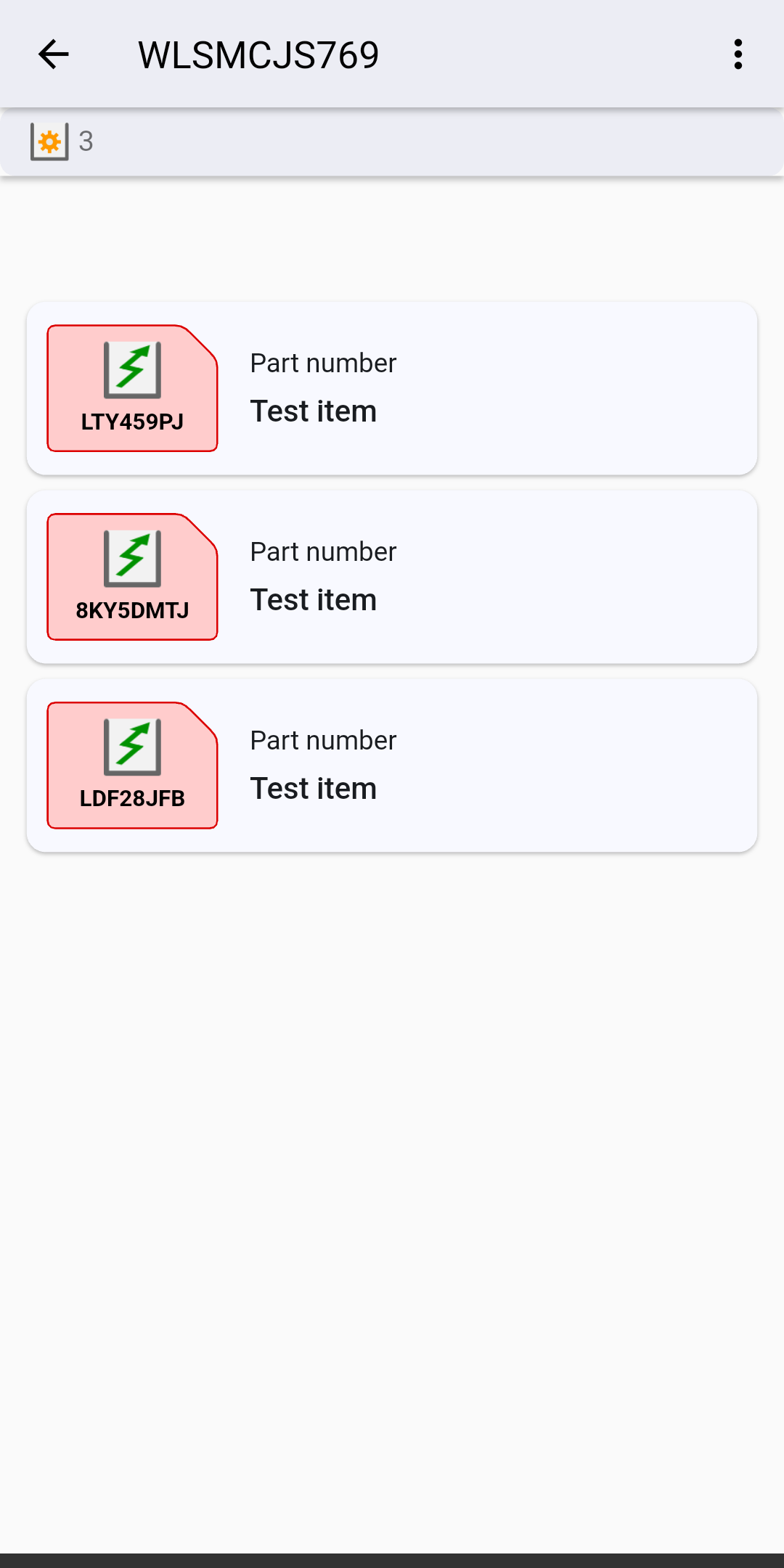
Step 1 – Creating the worklist From the App homepage, click on the widget of interest: the worklist is automatically created and displayed in the App, as shown in the screenshot.
|
1.1

|
1.2
|
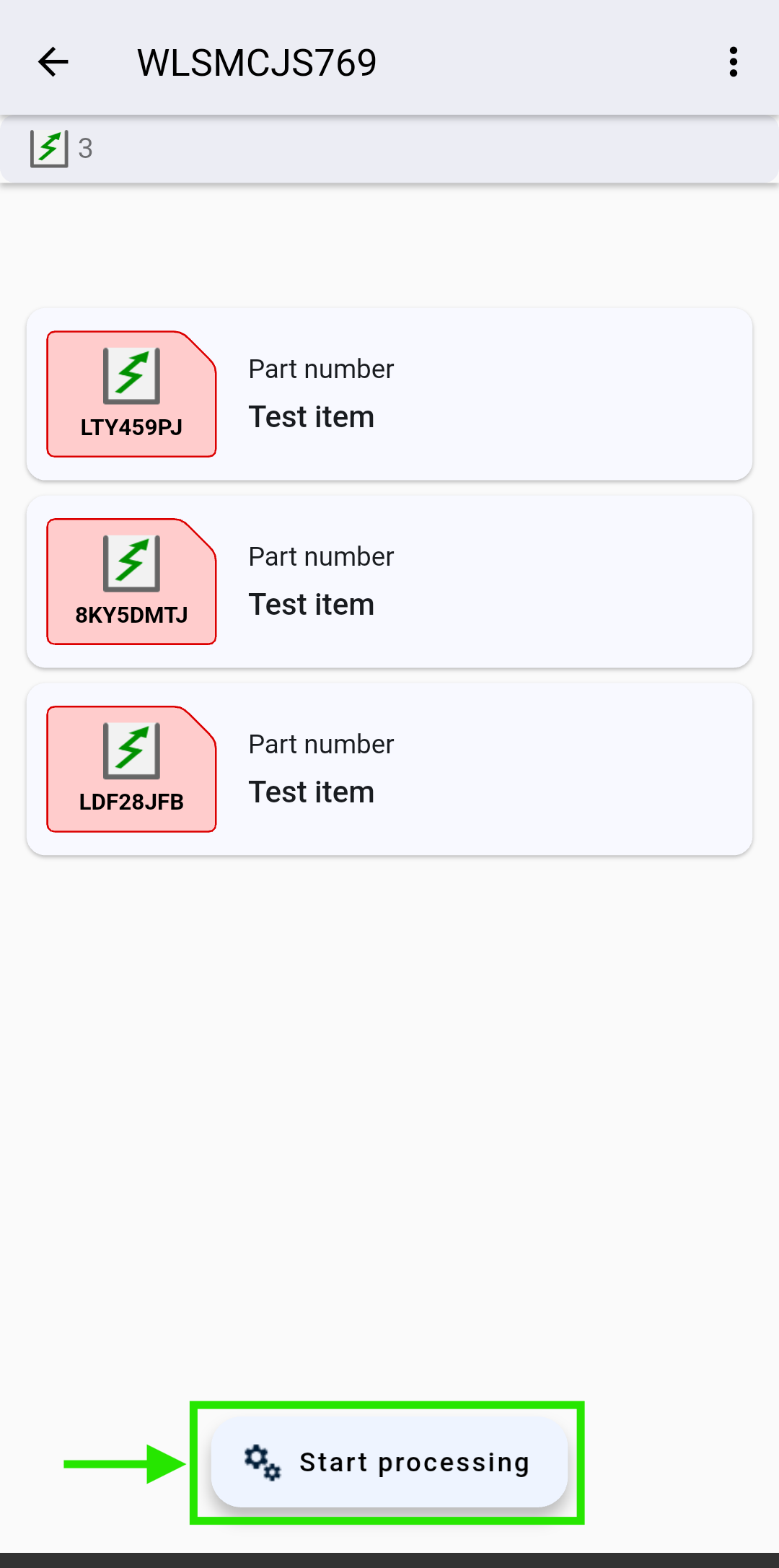
Step 2 – Starting processing To indicate that the cards have been taken in charge, click on the Start processing icon at the bottom. Alternatively, it is possible to click on the three dots in the top right corner, select Massive status change, choose the "In process" status, and confirm by clicking Confirm.
|
2.1
|
2.2

|
`
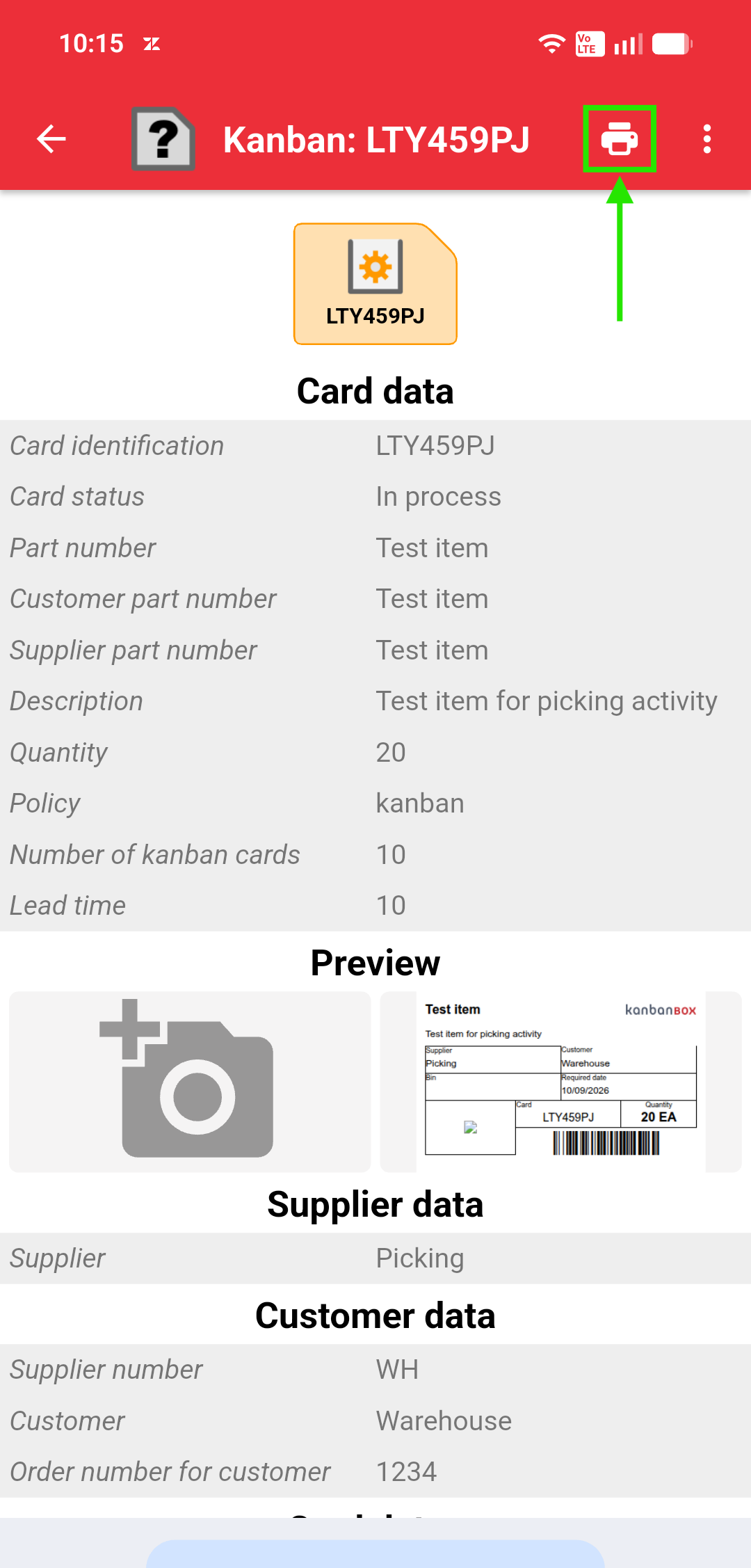
Step 3 – Printing and attaching the card, updating the status From the App, materials are processed one card at a time.
Procedure:
- Click the card to be printed
- Click on the "Print" icon at the top: the print job is sent to the printer previously configured on the device (see Phase 2)
- Apply the printed card to the product and update the card's status, for example to "Full"
- If the material is not available, flag the card as "urgent" by clicking the bell icon. As long as the worklist filter was set up to included all cards for the specific loops (with no status filter applied) and the Include only "released" and "in process with priority" cards option is set to "Yes", the missing card will be picked up again alongside the newly released cards the next time the worklist is created.
|
3.1

|
3.2
|
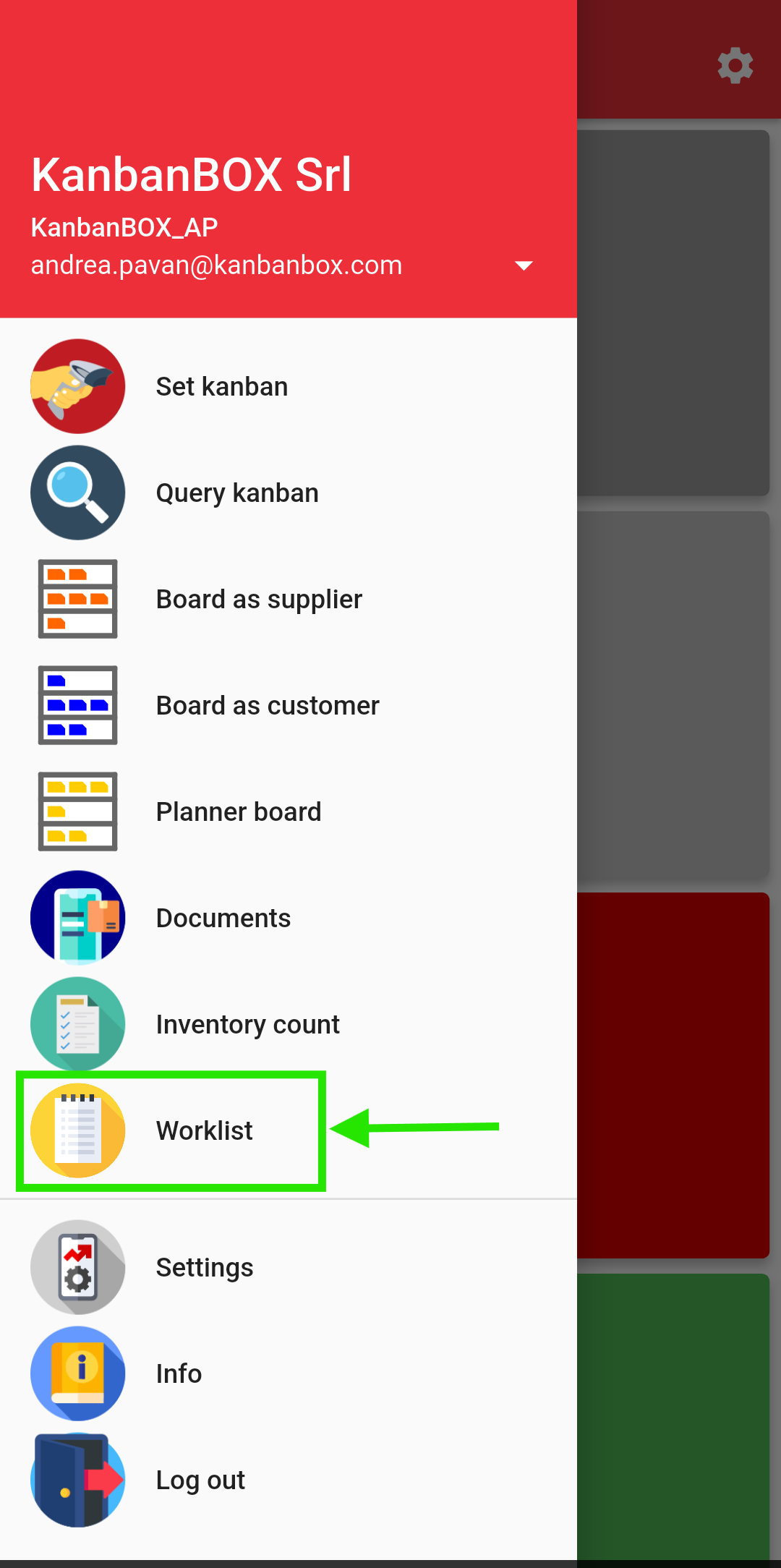
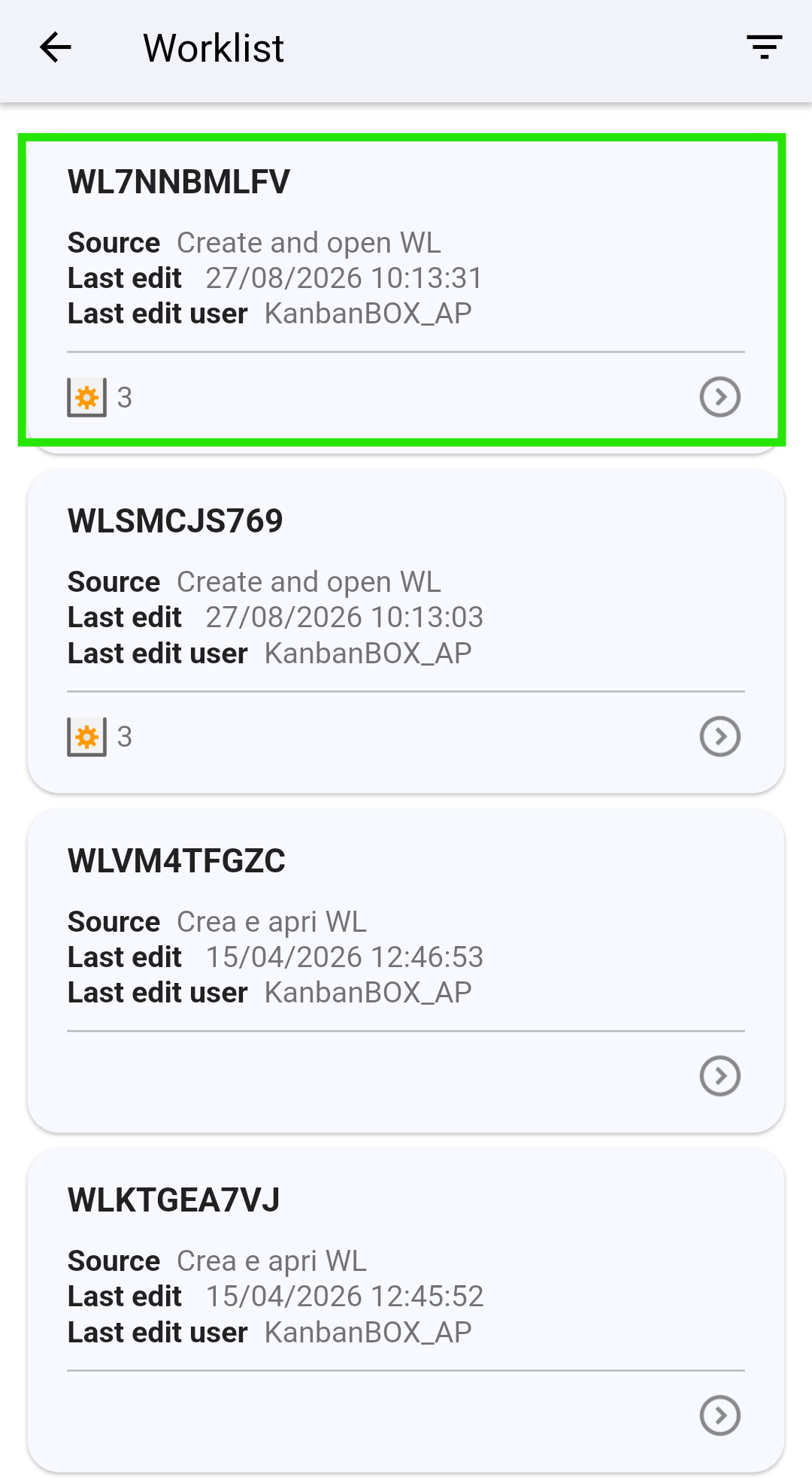
⚠️ Warning: if the worklist viewing screen has been exited and the worklist needs to be retrieved, it is necessary to go to the menu, select Worklist, filter by the user who created it, and open the worklist by clicking on its string ID.
|
3.3
|
3.4
|
Comments
0 comments
Please sign in to leave a comment.