Question
How to configure the printer from the App?
Answer
To connect a printer from the App, the following minimum requirements must be met:
- The KanbanBOX App must be installed on the device and should be updated to the last version;
- The device must run on Android;
- The printer is reachable either over the same Wi-FI network as the device or via Bluetooth.
The printer selection rules (e.g. associating a specific printer with a user, supplier, or customer) and the automatic printing configuration, as described in the guides, only apply to web browser use.
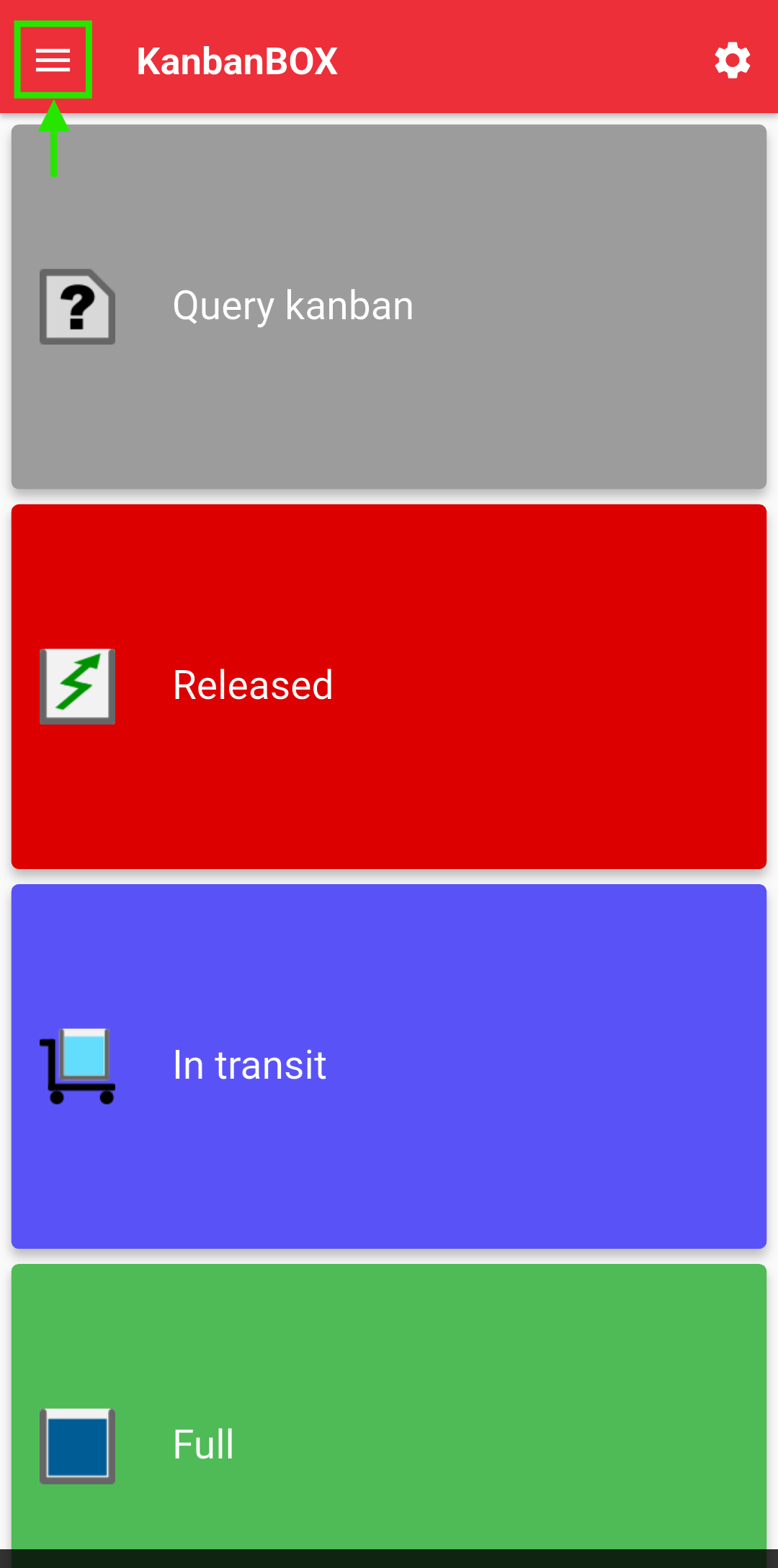
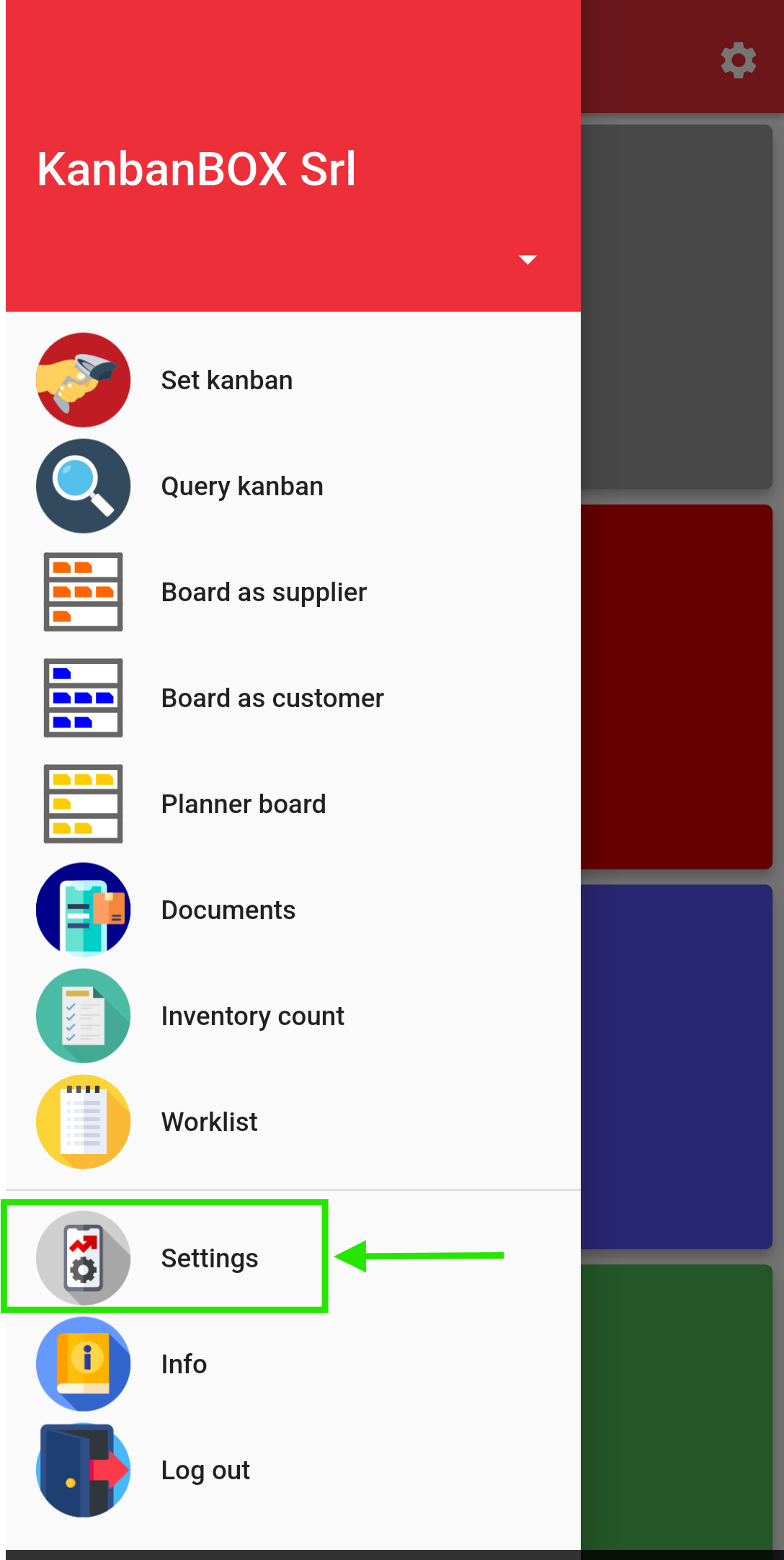
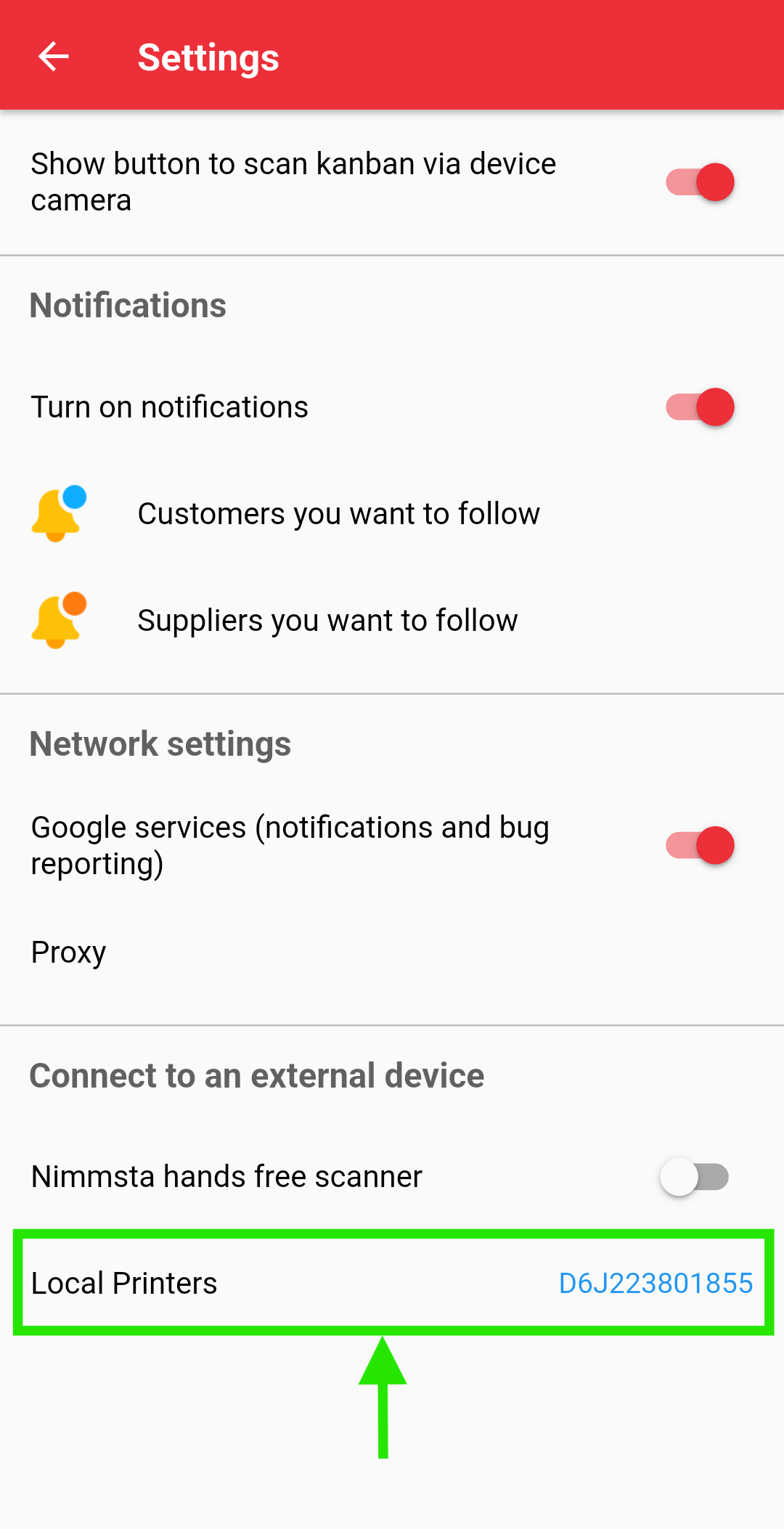
From the App, printing is always direct to print and does not use a print queue. The printer is selected directly on the device, by going to Settings > Local printers: the association is tied to the device itself, not to the user logged into it.
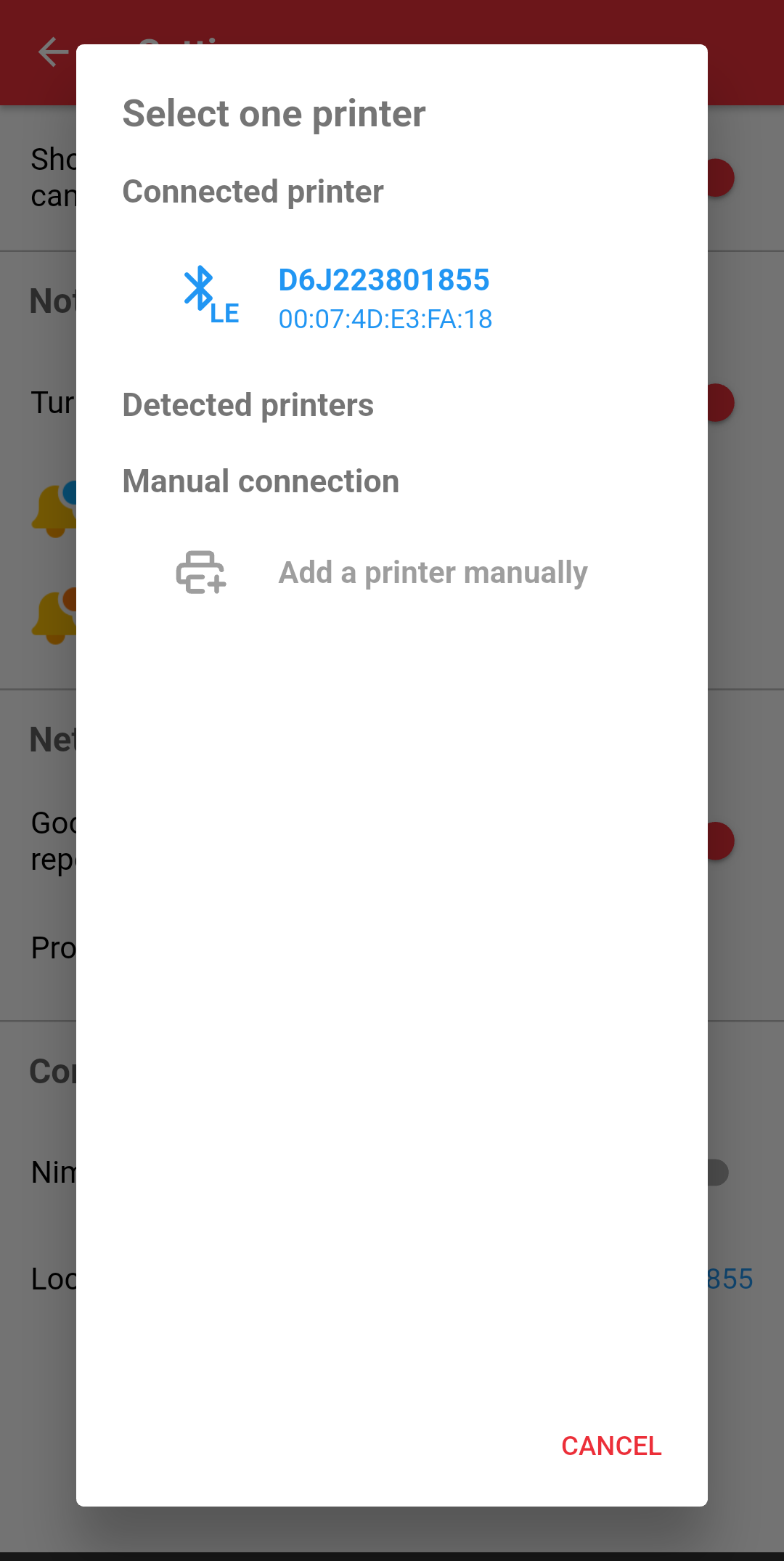
In the Local printers section, KanbanBOX automatically detects the printers available on the network or via Bluetooth: it is enough to select one from the list to complete the association. Alternatively, if a printer is not detected automatically, it can be connected via manual connection, by entering its IP address.
|
1
|
2
|
3
|
4
|
Printing can be started from the App in several ways, including:
- From Worklist: see the dedicated article How are worklists managed and their related cards printed from the App? for the detailed procedure.
- From the Query kanban widget: by entering the ID of the card to print, tapping on it, and then selecting the print icon at the top.
- From the Board: by tapping the card to print and then selecting the print icon at the top.
Comments
0 comments
Please sign in to leave a comment.